 My Library Account
 中文繁體
中文繁體


EndNote is a reference management tool to help you manage and format your citations
Install and Access EndNote with UTM LicenseChoose the operating system of your computer and login your UTM account to download Endnote. |
More trainings and supports of EndNote |
How to Use EndNote 21 in 7 Minutes (Windows) |
How to Use EndNote21 in 7 Minutes (Mac) |
View more at: Youtube ; Bilibili |


Settings of "Find Full Text" Features
EndNote provides "Find Full Text" feature for you to download the fulltext for the reference that saved in your Endnote Library. You have to make some settings with the following steps before using this feature.
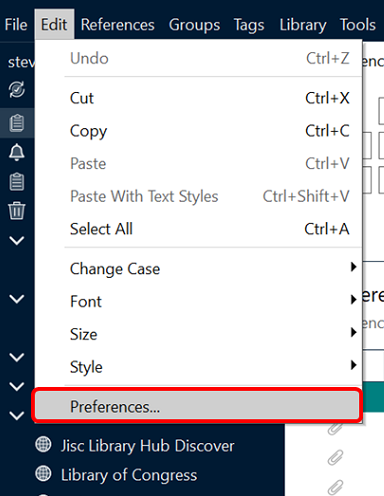
Click Edit → Preferences
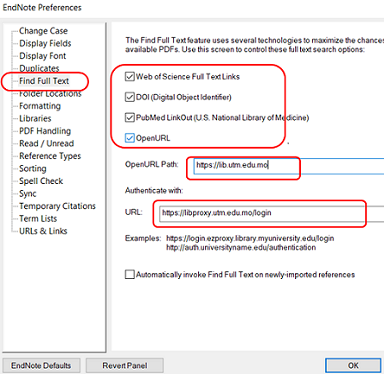
2. Click the 「Find Full Text」on the sidebar and tick all the 4 boxes.
3. Input http://library.utm.edu.mo as the 「OpenURL Path」.
4. Input https://libproxy.utm.edu.mo/login as the URL for「Authenticate with」, then click「OK」
These setting only need to be set for once. After finish the setting,
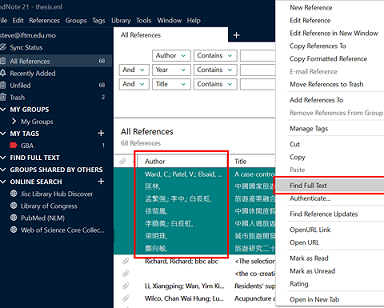
select the references that you wish to find the full text and click
right button → Find Full Text → Find Full Text for the feature.
However, this function is limited by the institute's subscription and other technical issues.It is possible that EndNote found the article URL only, or even found nothing. In this case, we suggest to download the full-text PDF via our Primo Catalogue or other databases and attach to the reference.